What causes touchscreen display issues in the 2018 Tesla Model 3, and how can they be fixed?
Causes of Touchscreen Display Issues in the 2018 Tesla Model 3 Touchscreen display issues in the 2018 Tesla Model 3 can arise from a variety of sources. Some common causes include: Software Glitches:…
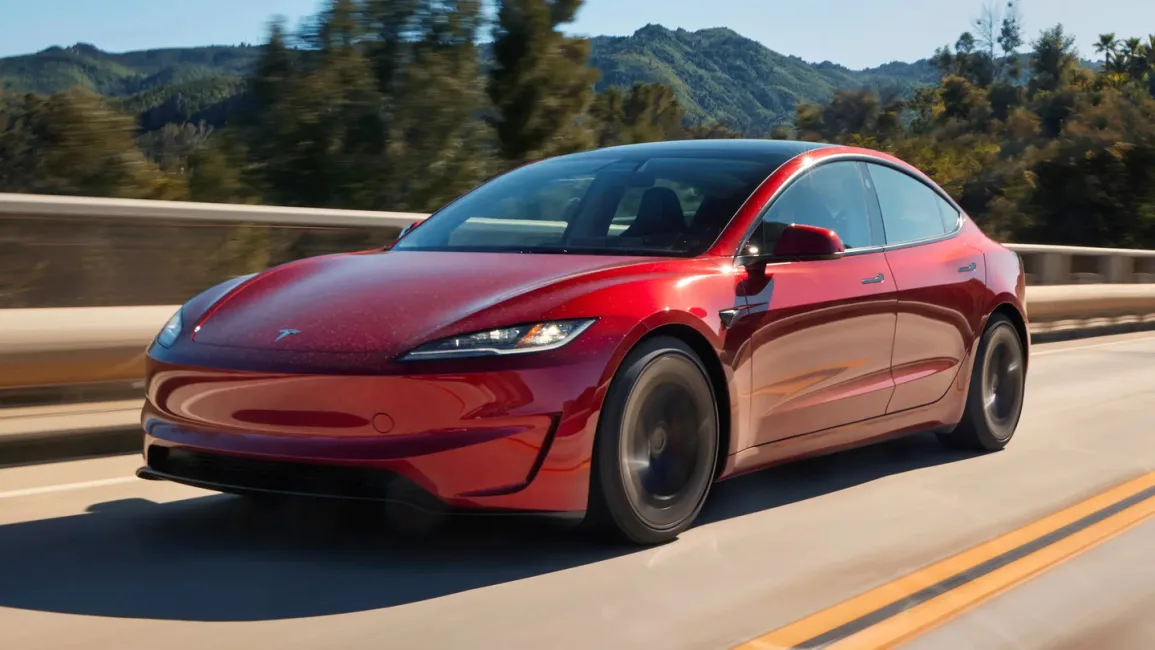
Causes of Touchscreen Display Issues in the 2018 Tesla Model 3
Touchscreen display issues in the 2018 Tesla Model 3 can arise from a variety of sources. Some common causes include:
- Software Glitches: Like many modern vehicles, the Tesla Model 3 relies heavily on software to control various functions. Software updates, which are frequently pushed by Tesla, can sometimes introduce bugs or compatibility issues that temporarily affect the touchscreen functionality.
- Hardware Failures: The touchscreen itself is an electronic component that can suffer from hardware failures. These might include dead spots on the screen, unresponsive touch inputs, or the screen going completely blank.
- Electrical System Issues: Since the touchscreen is part of the car’s integrated systems, problems with the vehicle's electrical system such as a failing battery, poor connections, or voltage issues can lead to display problems.
- Environmental Factors: Extreme temperatures, moisture, or direct sunlight can affect the touchscreen performance temporarily or, in severe cases, permanently.
- User Errors: Misconfigurations in the settings or accidental enabling of certain features might make the touchscreen appear as if it's malfunctioning.
Fixes for Touchscreen Display Issues in the 2018 Tesla Model 3
Addressing touchscreen display issues in the Tesla Model 3 often involves a series of troubleshooting steps:
- Perform a Soft Reset: A straightforward solution is to restart the vehicle’s systems by performing a soft reset. This can usually be done by holding down the two scroll wheels on the steering wheel until the Tesla logo appears on the screen, which can resolve minor software glitches.
- Perform a Hard Reset: If a soft reset does not resolve the issue, a more thorough reboot, known as a hard reset, may be necessary. This typically involves powering down the car completely, waiting for a few minutes, and then turning it back on.
- Check for Software Updates: Ensuring the vehicle’s software is up to date can prevent known bugs from affecting the touchscreen. Navigate to the settings to check for updates and install them if available.
- Inspect Connections and Hardware: If problems persist, check for any loose connections or visible damage to the touchscreen area. This might require a service visit if the issue seems related to hardware failure.
- Schedule a Service Appointment: For issues that cannot be resolved through basic troubleshooting, scheduling an appointment with a Tesla service center may be necessary. Tesla technicians can diagnose both hardware and software issues more accurately.
- Environmental Adjustments: Ensure that the car is parked in a relatively stable environment without excessive heat, cold, or moisture, which might help in restoring touchscreen functionality.
By following these steps, many touchscreen issues in the Tesla Model 3 can be adequately diagnosed and resolved. However, for more complex problems or persistent issues, professional assistance from Tesla’s support and service teams is recommended.