How to update the navigation system in a 2022 Toyota RAV4?
Step 1: Confirm System Compatibility Before you begin, ensure that your navigation system is compatible with the latest updates. For a 2022 Toyota RAV4, this typically involves accessing the Entune s…
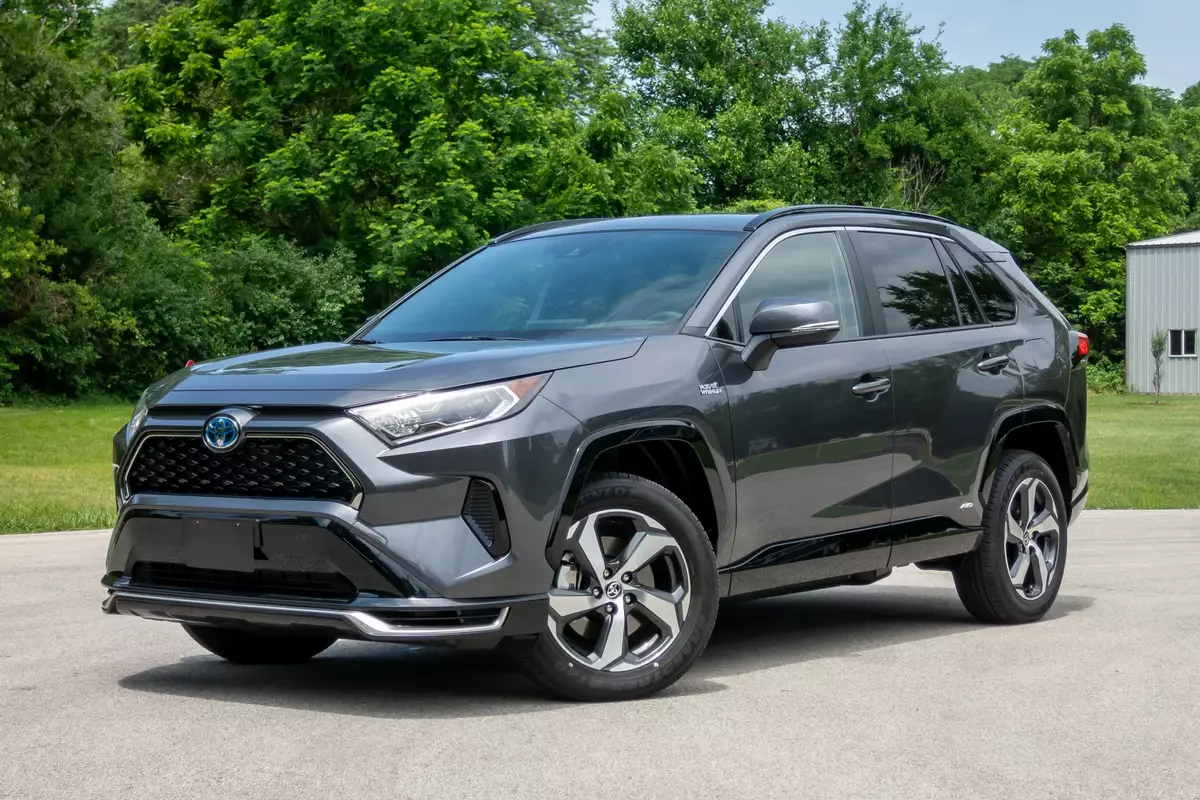
Step 1: Confirm System Compatibility
- Before you begin, ensure that your navigation system is compatible with the latest updates. For a 2022 Toyota RAV4, this typically involves accessing the Entune system since most recent models have built-in navigation software.
Step 2: Acquire the Latest Map Update
- Visit Toyota's official website or the Toyota Multimedia Map Updates portal to check for the latest map updates available for your specific model.
- Register or log in to your Toyota Owner's account to access the updates. Having an account is crucial for accessing system updates and specific details related to your vehicle.
Step 3: Download the Map Update to Your Computer
- After accessing the portal, find the available updates and download the appropriate files to your computer. You may need to purchase these updates, or sometimes they're offered free of charge, depending on the warranty and service package.
Step 4: Prepare a USB Drive
- Ensure you have a USB drive with sufficient storage capacity, usually at least 16GB, formatted to FAT32. This drive will be used to transfer the update from your computer to your car’s navigation system.
- Transfer the downloaded map update file onto your USB drive. Properly eject the USB drive from your computer once the transfer is complete.
Step 5: Install the Update in Your Toyota RAV4
- Insert the USB drive into your Toyota RAV4’s USB port. Usually, this is located beneath the dashboard or in the central console area.
- Turn on the vehicle's ignition and allow the system to recognize the USB drive. You should see a prompt on your navigation screen regarding the map update.
- Follow the on-screen instructions to install the update. This usually involves agreeing to the terms and conditions, confirming you wish to proceed, and waiting for the update to complete.
Step 6: Confirm Successful Installation
- Once the installation process finishes, the system might prompt you to restart your navigation system or it may do so automatically. Verify that the new maps are installed by checking the map version in your system settings.
Step 7: Remove the USB Drive
- Once the update process is complete, safely remove the USB drive from the port. You can store this drive for future updates or use it for another vehicle if necessary.
Final Tips
- Ensure that during the update process, your car is parked safely and the ignition remains on, as interruption can lead to incomplete updates which might affect navigation accuracy.
- Consult your Toyota dealership or the vehicle's user manual if you encounter problems during the update process. They can provide guidance or perform the update for you if needed.