How to update the navigation maps on a 2021 Mercedes-Benz C-Class?
To update the navigation maps on a 2021 Mercedes-Benz C-Class, follow these detailed steps to ensure a smooth and accurate update process. The steps may differ slightly depending on the specific syst…
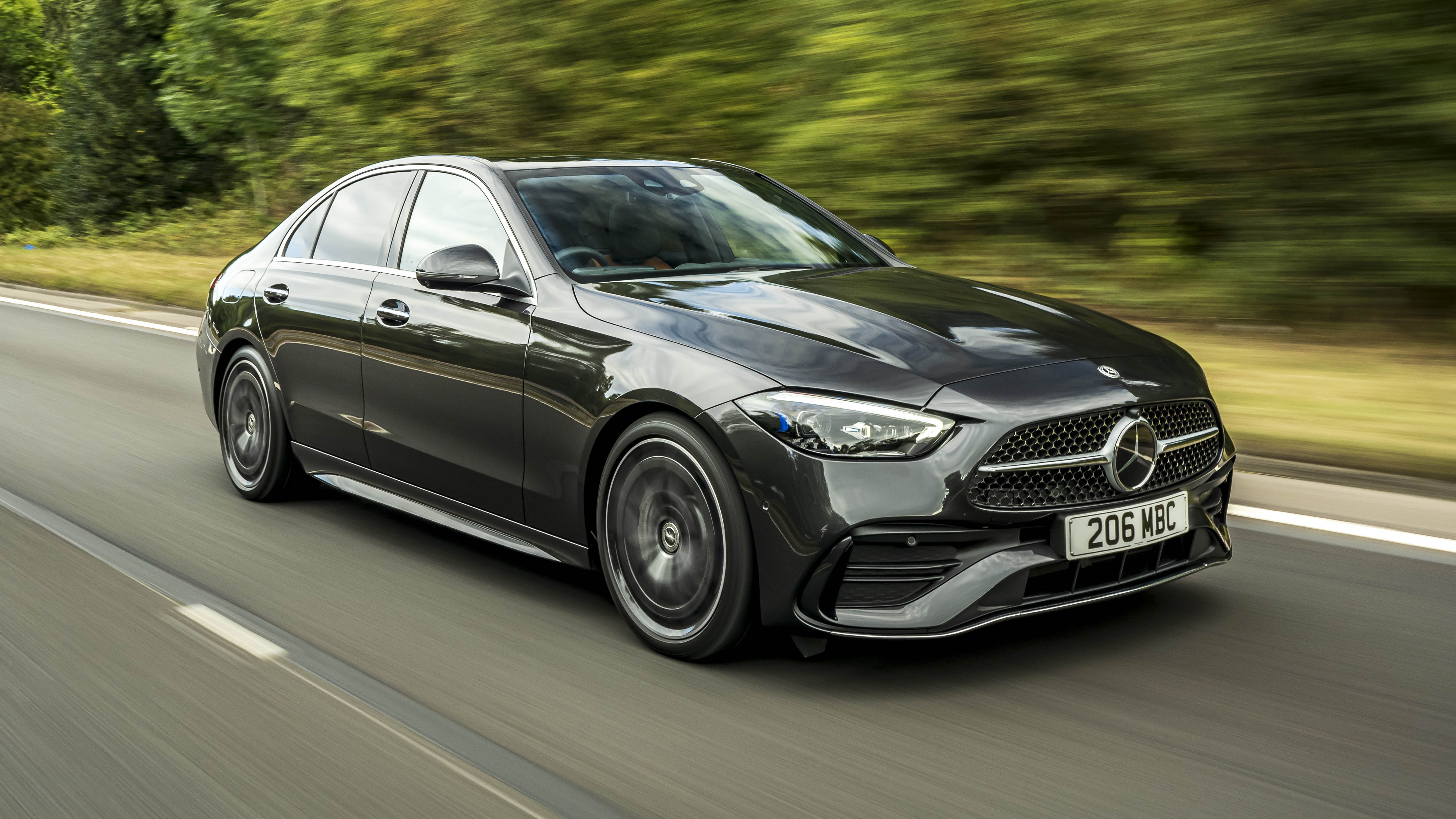
To update the navigation maps on a 2021 Mercedes-Benz C-Class, follow these detailed steps to ensure a smooth and accurate update process. The steps may differ slightly depending on the specific system your car is equipped with, but the general process will be similar.
Prepare for the Update
- Ensure your Mercedes-Benz C-Class is equipped with the latest infotainment system that supports map updates. This is typically the MBUX (Mercedes-Benz User Experience) system.
- Check if you have a relevant subscription or license to update the maps. Some updates might require an active subscription or an initial purchase.
- Have a reliable USB drive with sufficient storage capacity (usually at least 8GB).
- Visit the Mercedes-Benz navigation website or log in to your Mercedes Me account on your computer. Your car might need to be registered on the platform.
- In the navigation or map update section, select the appropriate update tailored for your vehicle's model and year.
- Download the update file to your computer. This file is usually large, so ensure you have a stable internet connection.
<li>Insert the USB drive into your computer and format it to clear any existing data, ensuring it's compatible with your car's system (use FAT32 or exFAT file systems).</li>Install Update in the Vehicle
<li>Transfer the downloaded map update file from your computer onto the USB drive. Ensure that the file is properly copied, and safely eject the USB when complete.</li>
- Start your C-Class and insert the USB drive with the update file into the vehicle's USB port. This port is often located in the center console.
- Your car's infotainment system should recognize the update file automatically and prompt you to start the installation process.
- Follow the on-screen instructions. The installation may take a while, so keep the car in a well-ventilated area and do not turn off the ignition during the process.
- Once the update is complete, the system may restart to apply the changes. After restarting, check whether the map version has been updated by navigating to the system information or map settings on the MBUX system.
- Dispose of the used files on the USB and store it safely for future updates.